Prerequisite Technical Accounts
This page is part of the Legacy "digital will". It ensures family can assume control quickly and safely.
Purpose
Establish control of essential accounts (email, password manager, Apple ID) so all other steps are possible.
Audience
- Primary: Hope
- Secondary: Kids or trusted executor assisting
Key terms
| Term | What it means |
|---|---|
| YubiKey | A small USB security key (looks like a USB flash drive with a gold disc). You plug it into a USB port and tap the gold disc when a website asks for verification. One is plugged into Evan's MacBook Pro (USB-C); the second is on Evan's keychain. |
| MFA (Multi-Factor Authentication) | An extra security step beyond a password. After entering your password, the site asks you to verify with something physical (like a YubiKey tap) or a code. This prevents strangers from logging in even if they know the password. |
| Recovery Codes | One-time backup codes printed on paper. If you don't have a YubiKey available, you can type one of these codes instead. Each code can only be used once. These are in the Statler lockbox. |
Prerequisites
- Physical access to the Statler lockbox (contains master password printout, YubiKeys, recovery codes)
- Evan's MacBook Pro — only needed to unplug the USB-C YubiKey (no login required)
- Internet access (any computer or phone with a browser)
Emergency actions (if time-critical)
- Switch Proton catch‑all to Hope (below). This redirects all fiddlers.cloud email immediately.
- Access Bitwarden org and shared collections to retrieve credentials.
- If blocked by MFA, use YubiKey on MacBook Pro or recovery codes from lockbox.
Credentials
All account credentials and secure notes are in Bitwarden (see below for details).
Do this step FIRST.
This section walks you through the very first steps you have to do to gain control of things like email and passwords.
Proton
This section "Proton" is specific for Hope.
This section—moving the fiddlers.cloud domain to hope@fiddlers.cloud—is targeted to Hope. If anyone else is reading this, you can simply access evan.fiddler@proton.me directly.
The very first thing you need to do is switch the Catch-All address in our fiddlers.cloud domain from evan@fiddlers.cloud to hope@fiddlers.cloud. This will immediately route all *@fiddlers.cloud emails to your Proton account.
What you need (Proton)
- Hope's Proton login credentials (stored in Hope's own Bitwarden account; also printed in the Statler lockbox in case both Evan and Hope have passed)
- Internet connection
Steps (with pictures below)
- Go to mail.proton.me and log in with Hope's Proton account.
- Open Settings.
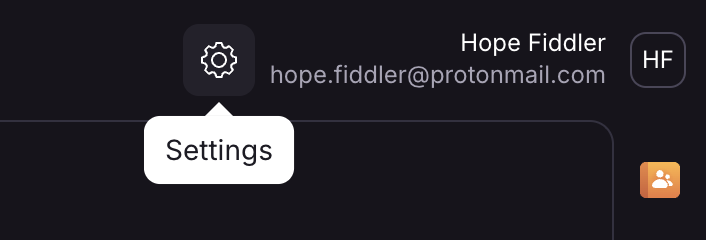
- Click "All Settings".
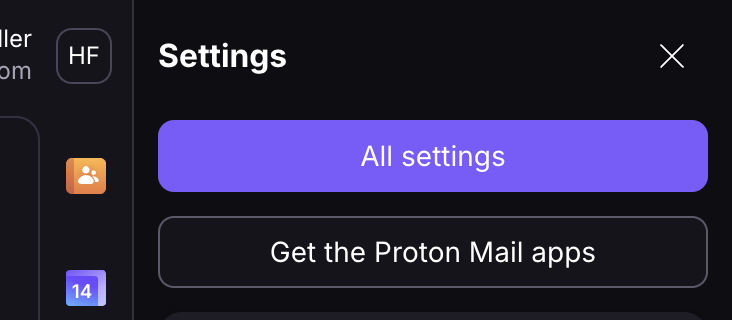
- In the left panel, under Proton Mail, click "Domain names".
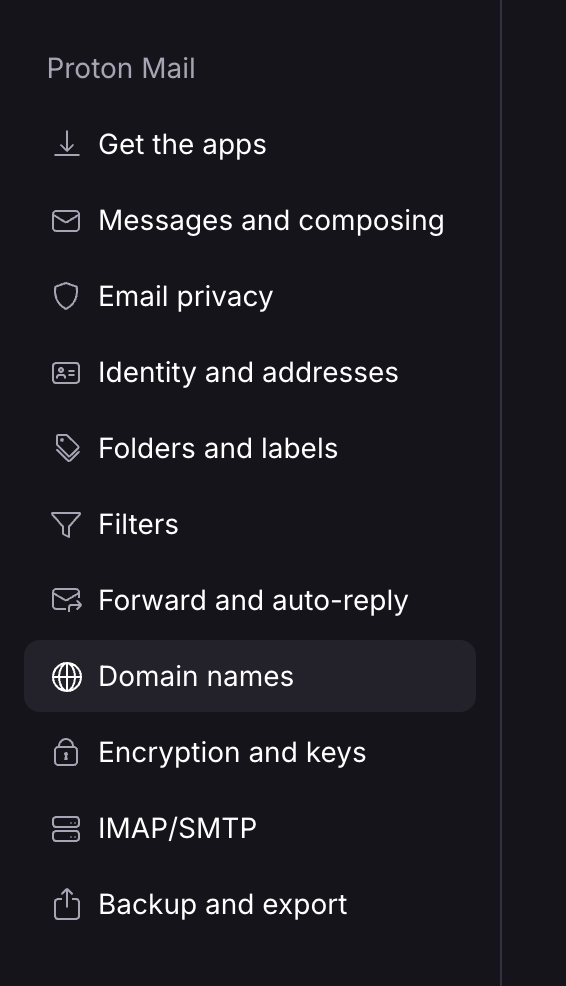
- Find
fiddlers.cloud, click the small down‑arrow, then choose "Set catch‑all".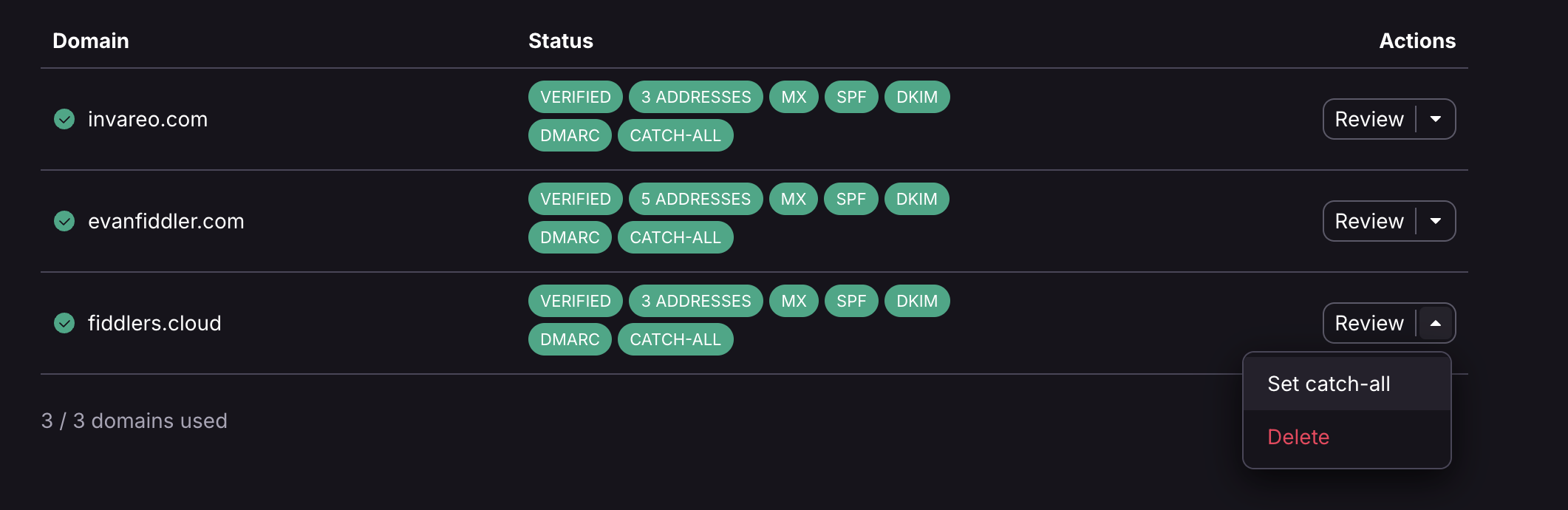
- In the list, choose
hope@fiddlers.cloud.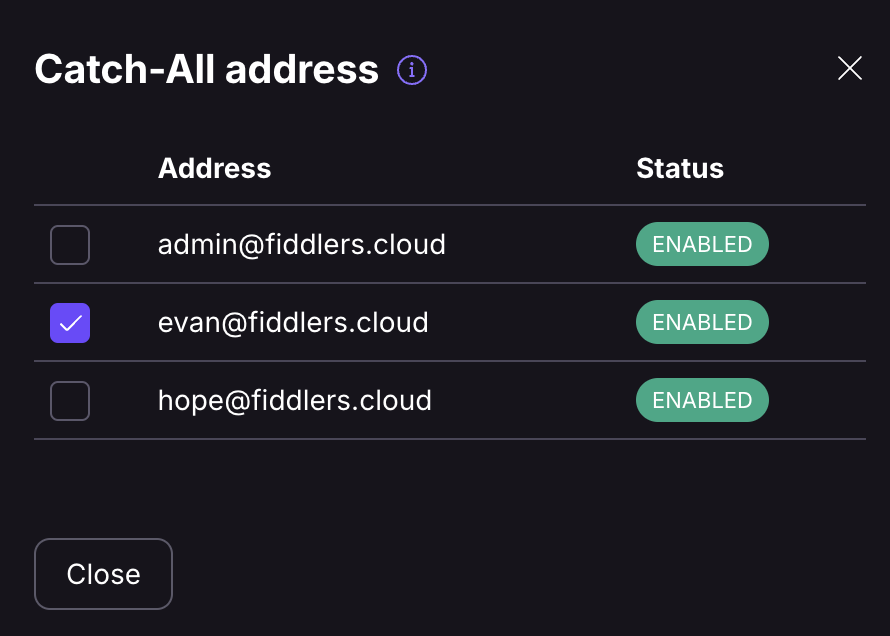
- Changes auto‑save. From now on, all
*@fiddlers.cloudmessages go to Hope’s inbox.
All Proton steps here can be done using your own Proton account. You do not need to log into Evan’s Proton account to change the catch‑all.
Bitwarden
Bitwarden is the password manager that stores all account credentials. Most of what you need is in shared collections that are already visible to Hope's Bitwarden account. If you need to access Evan's personal vault, his Master Password is printed in the Statler lockbox.
What you need (Bitwarden)
- Evan's Bitwarden login email:
bitwarden@evanfiddler.com - Evan's Bitwarden Master Password (printed in the Statler lockbox)
- A YubiKey (from the MacBook Pro or keychain) or a printed Recovery Code from the lockbox
Steps to log in to Evan's Bitwarden
- Go to vault.bitwarden.com in any web browser.
- In the Email address field, type
bitwarden@evanfiddler.com. - Click Continue.
- Enter the Master Password from the lockbox printout.
- Click Log in.
- Bitwarden will ask for MFA verification:
- If you have a YubiKey: Plug it into a USB port on the computer. When the page says "Touch your security key", tap the gold disc on the YubiKey.
- If you don't have a YubiKey: Click "Use another method" and choose "Recovery code". Type one of the printed recovery codes from the lockbox. Cross it off the list after use — each code works only once.
- You are now logged in.
Where to find what you need
Everything is organized into shared collections (visible to both Evan and Hope) and Evan's personal vault.
Shared collections (check these first):
Evan & Hope— Joint accounts and shared credentialsLegacy Box— Accounts that need to be transferred or managedLegacy Box > Cancel— Accounts to cancelLegacy Box > Fiddler Family Trust Assets— Trust-related credentials
To view shared collections: click Fiddlers (the organization name) in the left sidebar, then browse by collection.
Evan's personal vault folders (if something is missing from shared collections):
- Important — Small folder with items you will need to access, but lower priority at this point
- Personal — Can be skipped entirely. No relevant info, no cancellations needed.
- Invareo — Needed in the Invareo & Business Interests section later
- SimSpace — Can be ignored (similar to Personal)
- OregonState — Can be ignored
- CYLC — Needed in the Invareo & Business Interests section later
- Rick Fiddler Aviation — Needed in the Invareo & Business Interests section later
- Cliff Maine Aviation — Needed in the Invareo & Business Interests section later
- Grand Rapids Wellness — Needed in the Invareo & Business Interests section later
To view vault folders: click Vaults in the left sidebar, then expand folders.
Stay safe
Never paste passwords into these docs or share them over text/email. Keep secrets in Bitwarden only.
Apple ID
There isn't anything critical in Evan's Apple ID or iCloud, but getting access can help with device recovery and messages.
What you need (Apple)
- Evan's Apple ID email:
apple@evanfiddler.com(also stored in Bitwarden) - Apple ID password (search Bitwarden for "apple" or "evanfiddler")
- A YubiKey or an Apple device (MacBook Pro, iPhone) to approve the MFA prompt
Steps to log in to Evan's Apple ID
- Go to appleid.apple.com in any web browser.
- Click Sign In.
- Enter
apple@evanfiddler.comand the password from Bitwarden. - Apple will ask for MFA verification:
- If you have a YubiKey: Plug it in and tap the gold disc when prompted.
- If you have Evan's iPhone or MacBook: A popup will appear on that device — tap Allow and enter the 6-digit code shown.
- You are now signed in and can manage devices, iCloud storage, and account settings.
If you cannot sign in
Use Apple's Legacy Contact or Account Recovery options. Go to iforgot.apple.com to start the process. Keep notes of case numbers and dates in Bitwarden secure notes.
Cross-links
- Previous: Prerequisites
- Next: Step 1: Home Infrastructure
- Reference: Appendix A - Network Device Info